MatrixGold and RhinoGold files are 3DM
Both are jewellery plug-ins for Rhino: what you save is a normal Rhino 3DM file, and Jart opens it like any other. Gemvision says it no longer offers technical support for RhinoGold; designs made in it still open. You keep your plug-in's own renderer for work inside the CAD program; Jart is for when you want a render on any computer with a browser, a 3D link for the client, or the piece's weight and stones in Design Facts.
1. Make sure the render meshes are saved
Gems, heads, shanks and pavé from the builders are Rhino surfaces and solids. As in Rhino, switch a viewport to Shaded or Rendered so every object gets a render mesh, then save without Save Small. Raise Document Properties → Mesh to Smooth & slower if curved metal shows facets.
2. Name the gems and the metal
Jart turns each object into a part and names it after the object. Auto assign then reads those names: diamond, gem, stone or a stone's name (ruby, sapphire, emerald…) makes a stone; rose, platinum, silver, white, 14k and the other metal and karat words pick the metal. A metal part with no recognised name gets a metal from its colour in the file.
Layer names are not read. A stone on a layer called "Diamonds" but named "Object 12" is not recognised. To name many objects at once, select them (for example with SelLayer) and type the name in the Properties panel: Rhino gives it to all of them.
Keep stones and metal as separate objects. Objects joined into one (BooleanUnion, Join) arrive as one part and take one material.
Check the gem objects first: select one and look at its name in Properties. If the builders left them unnamed, select all the stones of one kind and name them together, for example "Diamond" for the pavé and "Sapphire centre" for the centre stone. Name the metal by its alloy, such as "Shank 18k rose gold" or "Head platinum".
3. Save or export the file
Save the design as a 3DM (or Save As a copy for Jart). A GLB export works as well. Keep the unit in millimetres. For the caster, keep sending the STL from your CAD program.
4. Open it in Jart
Open thejart.com/try (no account needed) or your studio, then drop the 3DM on the page or choose it under Open a design. The file is read in your browser and never uploaded. Jart's Rhino reader downloads once per visit and decodes in the background, with a timer and a Cancel button.
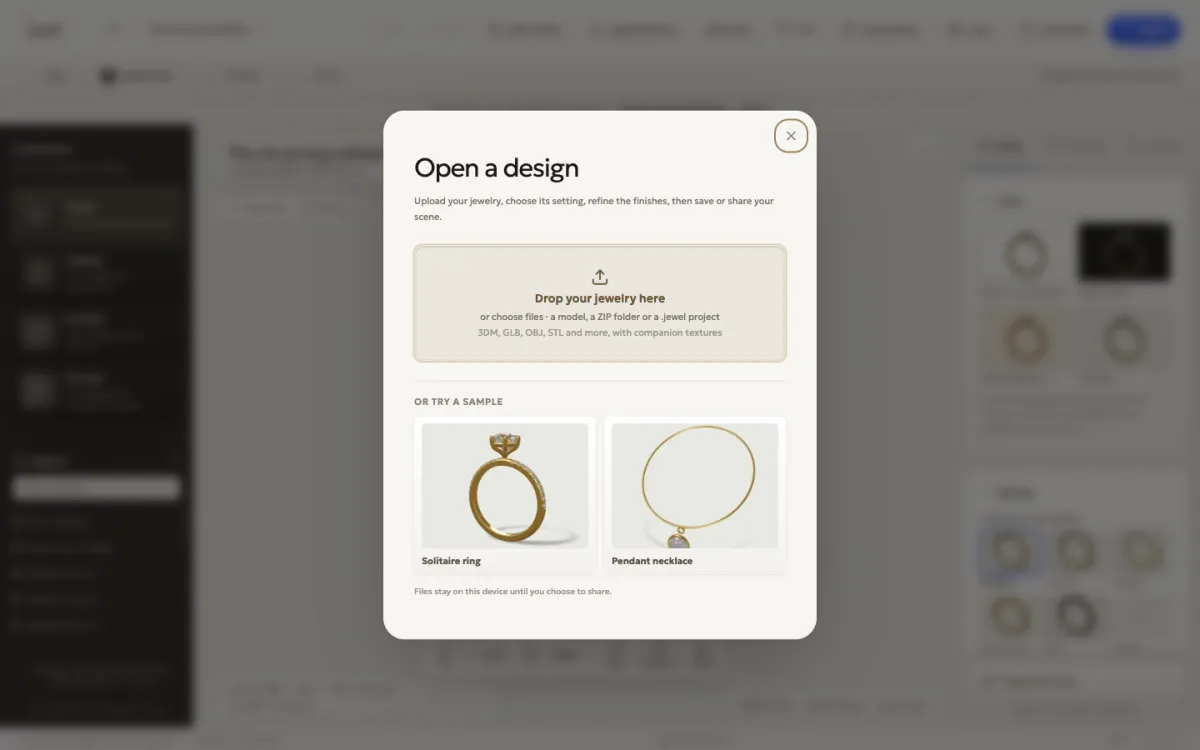
5. Let Auto assign set metals and stones
Jart reads the names and asks before changing anything. Choose Apply, or Choose myself to pick materials by hand. Any part can be changed afterwards under Materials, for the whole design or the part you clicked.
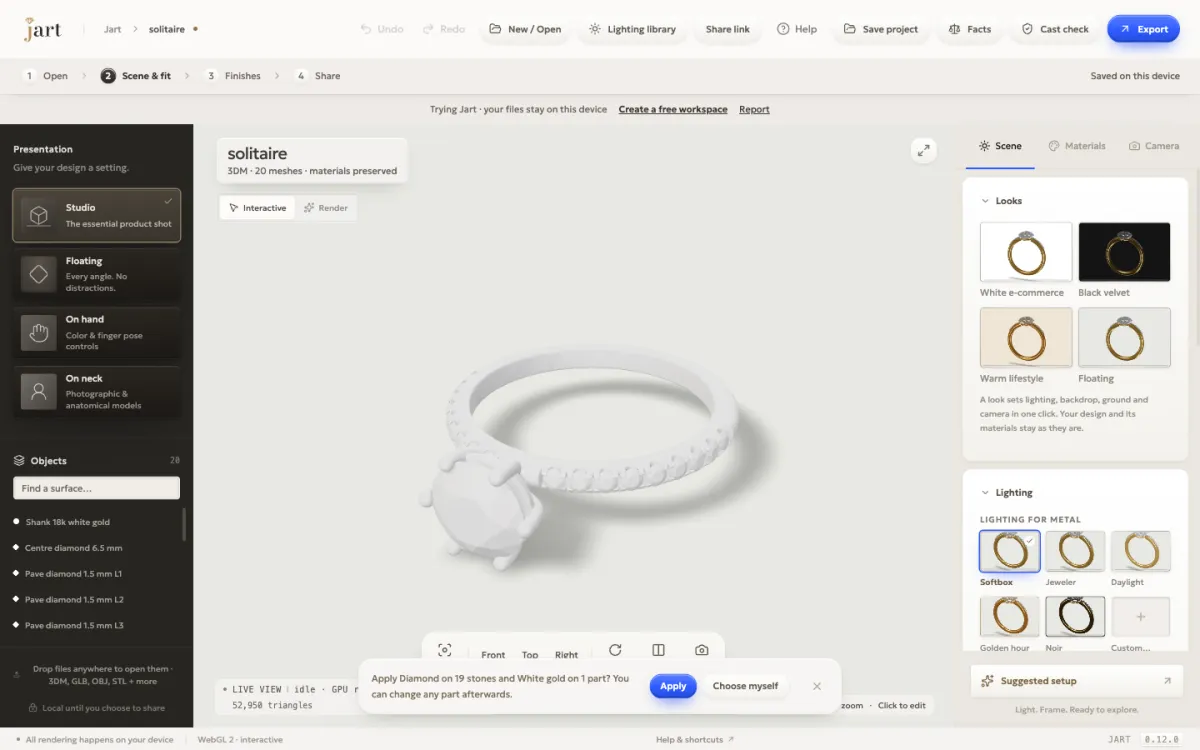
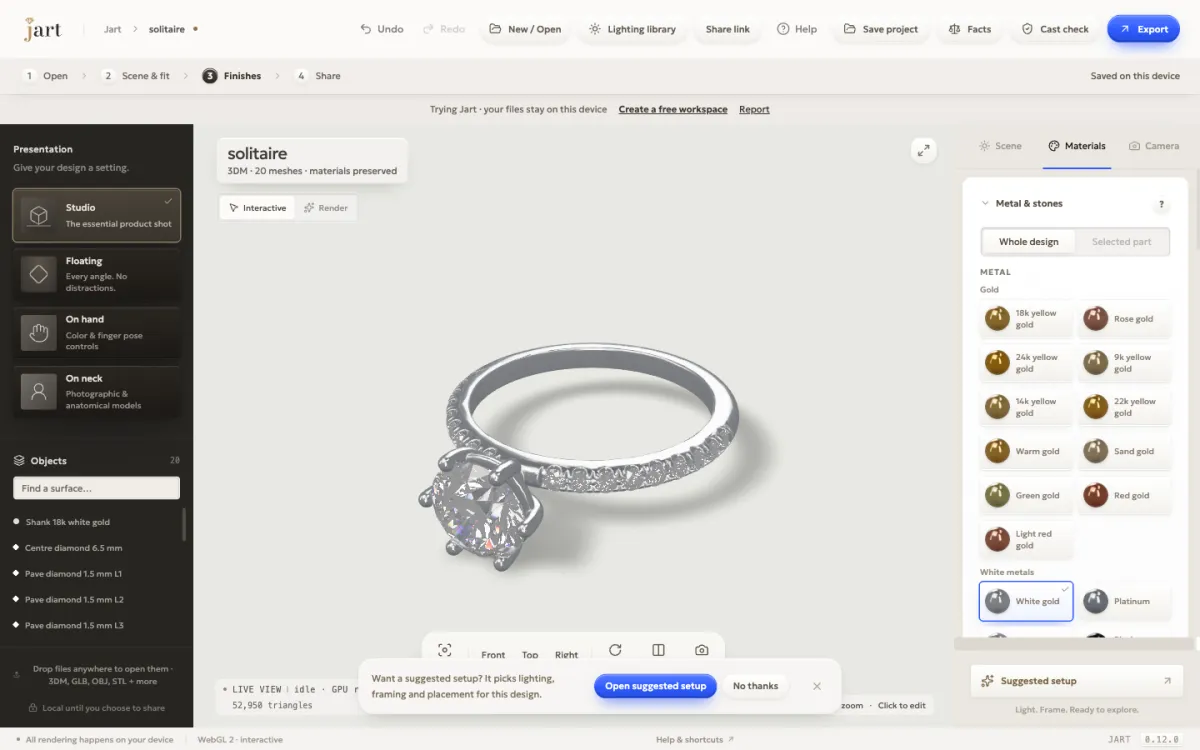
6. Choose a look and finishes
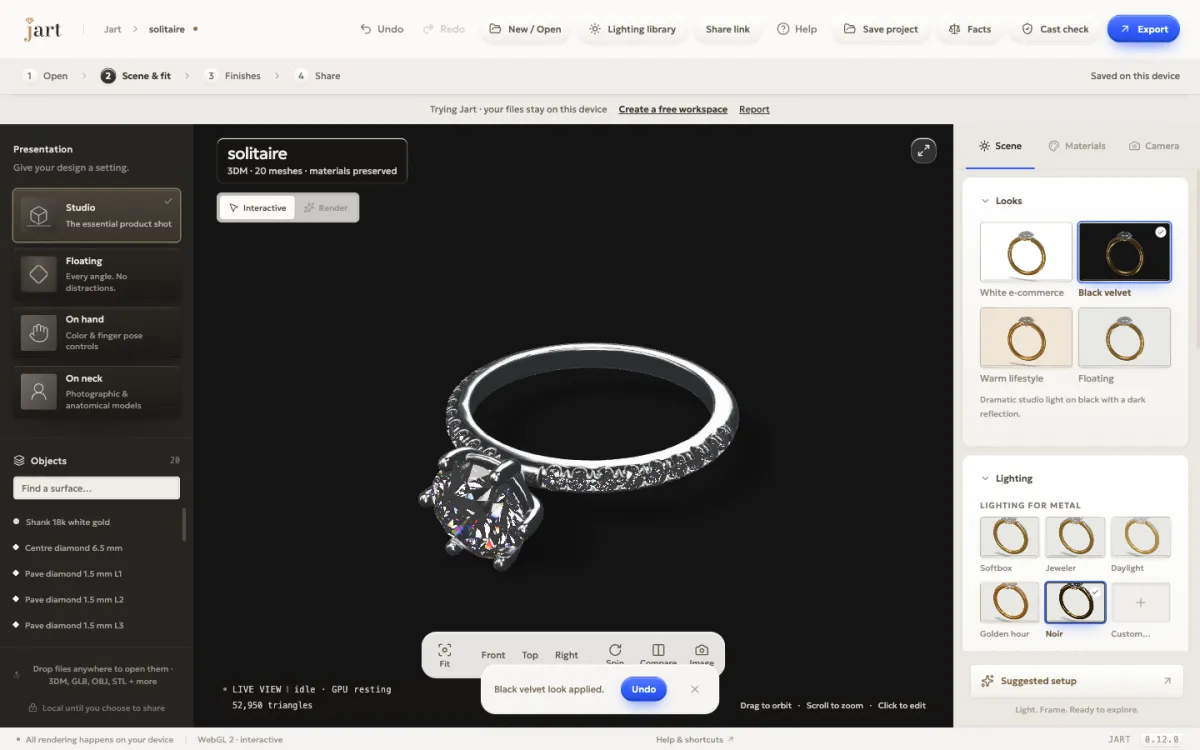
Under Scene → Looks, one click sets the lighting, backdrop and ground together: White e-commerce, Black velvet, Warm lifestyle and Floating. The design and its materials stay as they are. Metal finishes (polished, brushed, satin, hammered, sandblasted and patina) are under Materials → Surface finishes; see what each finish does to light.
7. Render
Switch from Interactive to Render. Render path-traces the scene on your own graphics card in the browser, light bouncing through the stones and off the metal, and refines it pass by pass; the counter shows how far it has got. The full Render needs WebGPU: a current Chrome or Edge, or Safari on macOS or iOS 26 or newer. No plan limits how many renders you make.
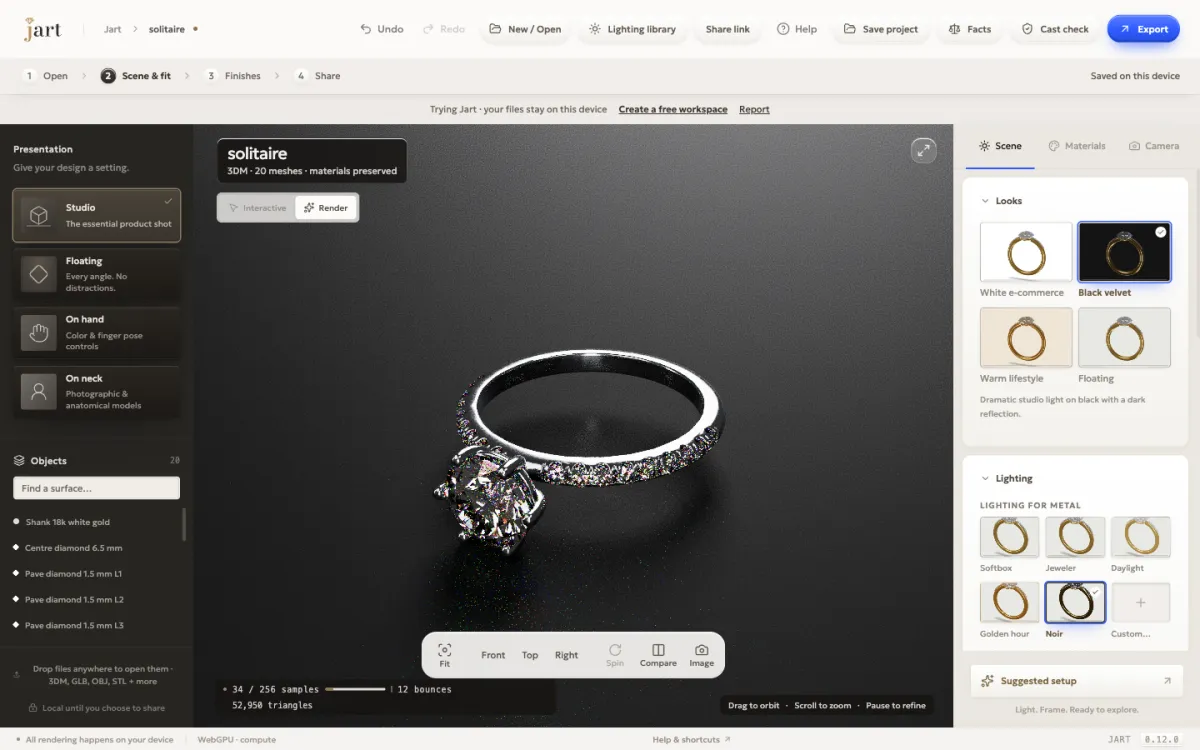
8. Export or share
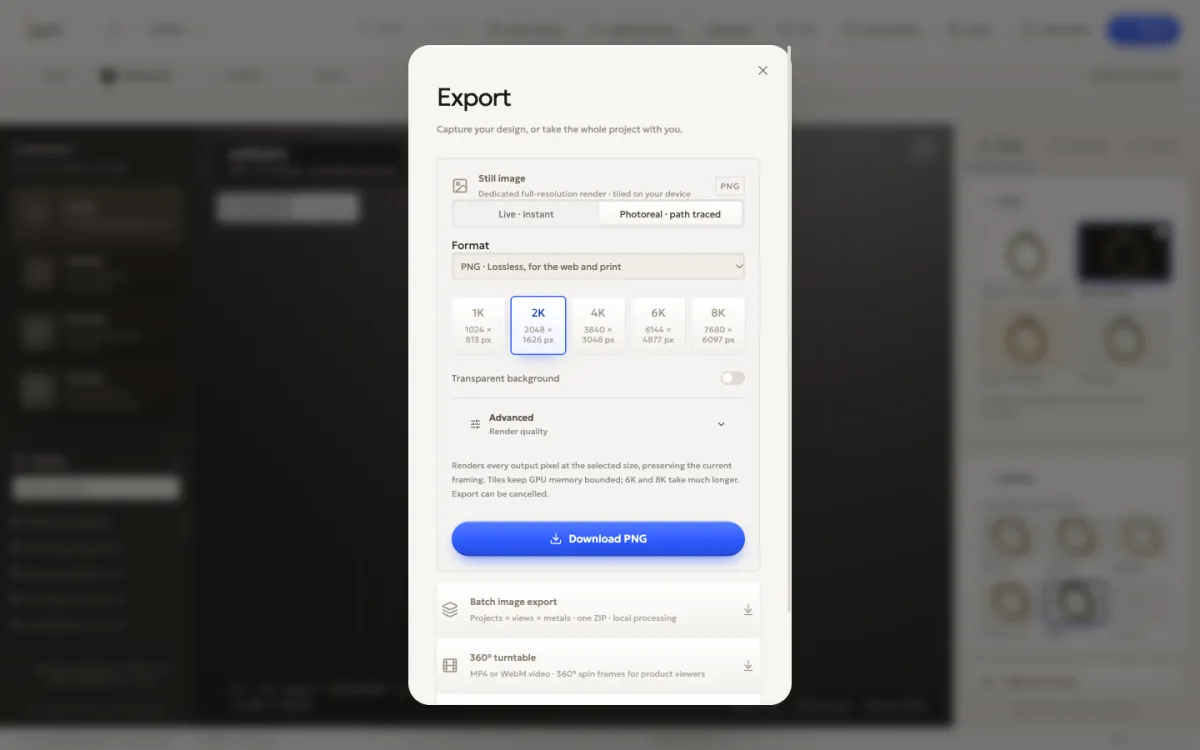
Export saves a still as PNG, JPEG or WebP (16-bit PNG and EXR from Render), up to 8K on Pro and 2,048 px with a small mark on Free. The same dialog makes turntable videos, 360° spin frames and a GLB 3D model; on a phone, View in AR places the piece in the room at its true size. Share link sends a client a 3D view of the piece, and on Pro an approval link lets them approve a version by name.
If something looks wrong
- The file opens empty or with parts missing: the render meshes were not saved. See the step above.
- The size is wrong: check the model's unit in Rhino (Document Properties → Units), or set it in Jart under Scene → Advanced → Source units.
- Stones came in as metal: name the stone objects (not only their layer), then run Materials → Auto assign again or pick Diamond by hand.
- The metal shows facets: the render mesh is coarse. Raise the mesh quality and save again.
- Everything is one part: the objects were joined. Keep metal and stones separate.
More in Opening your files and Troubleshooting.